Team Management for Coaches & Academies
- Team Management
Menu
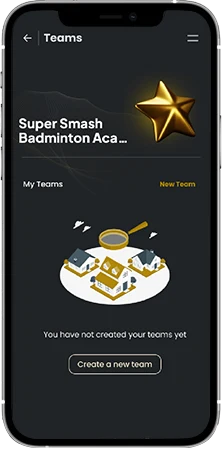
Step:1 Academy Teams
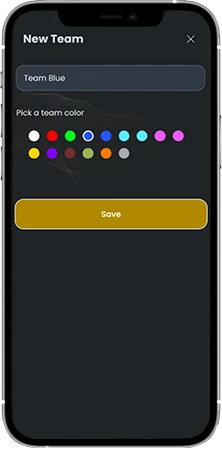
Step:2 Create Teams
- Give a name for your team
- Set a colour to identify your teams easily
- Save
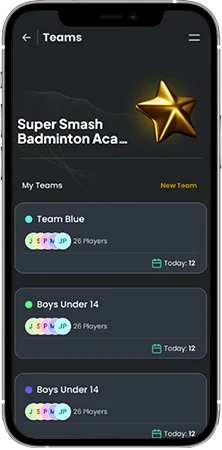
Step:3 Send RAK Invitation Code
- Get a unique RAK code for your academy from us (Head Coach only)
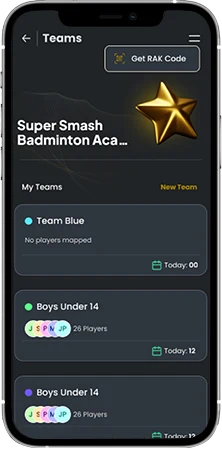
Step:4 Share it with Players and coaches
- Share it with your academy players and coaches
- Bring in your team together.
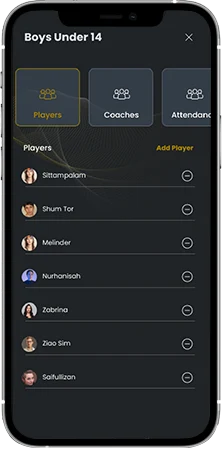
Step:5 Player Mapping
- Go to the team
- Select the Players Tab
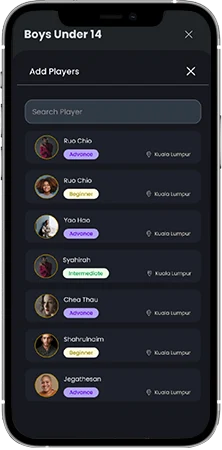
Step:6 Player Mapping
- Click the “Add Player” Button
- Search and select the player to add them to the team
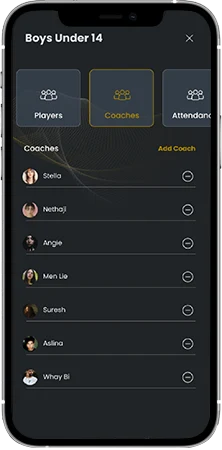
Step:7 Coach Mapping
- Go to the team
- Select the Coaches Tab
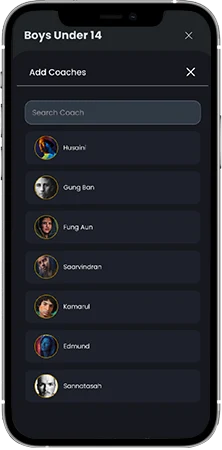
Step:8 Coach Mapping
- Click the “Add Coach” Button
- Search and select the coach to add them to the team
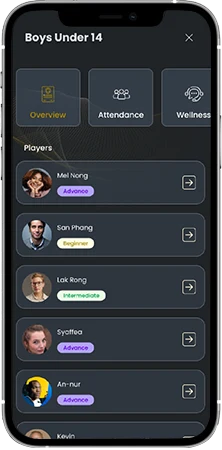
Step:9 Team Overview
- Select a team from your teams screen
- The overview tab will show the list of all players mapped in this team
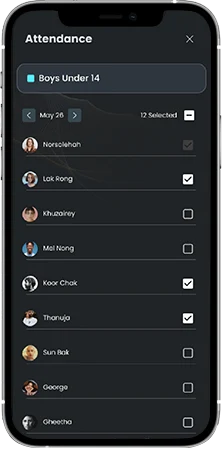
Step:10 Team Attendance
- Click the “Attendance” tab to start marking your team’s attendance for the day
- By default current date is loaded for the ease of use
- Use “select all” to mark all players at once.
- Note: You can move to previous 30 dates to see the marked attendance in read-only mode
- You cannot move to a future date from here.
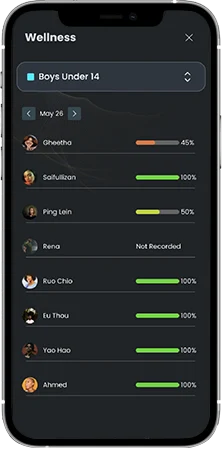
Step:11 Team Wellness
- Click the “Wellness” tab to start tracking your team’s wellness score for the day
- Wellness score is derived from the player’s individual wellness parameters like Sleep, Fatigue, Muscle soreness and Stress.